Restaurant Ops

Run orders, Kitchen, Tables, and Daily Close in one restaurant workspace.

Take orders, send items to Kitchen, manage Tables, track recipes and waste, and close the day without mixing the work into Standard POS.

Separate plan · Standard POS is not required · Phone and tablet

Features shown depend on your Restaurant setup, app version, and role.

Open the Restaurant Ops Help Center
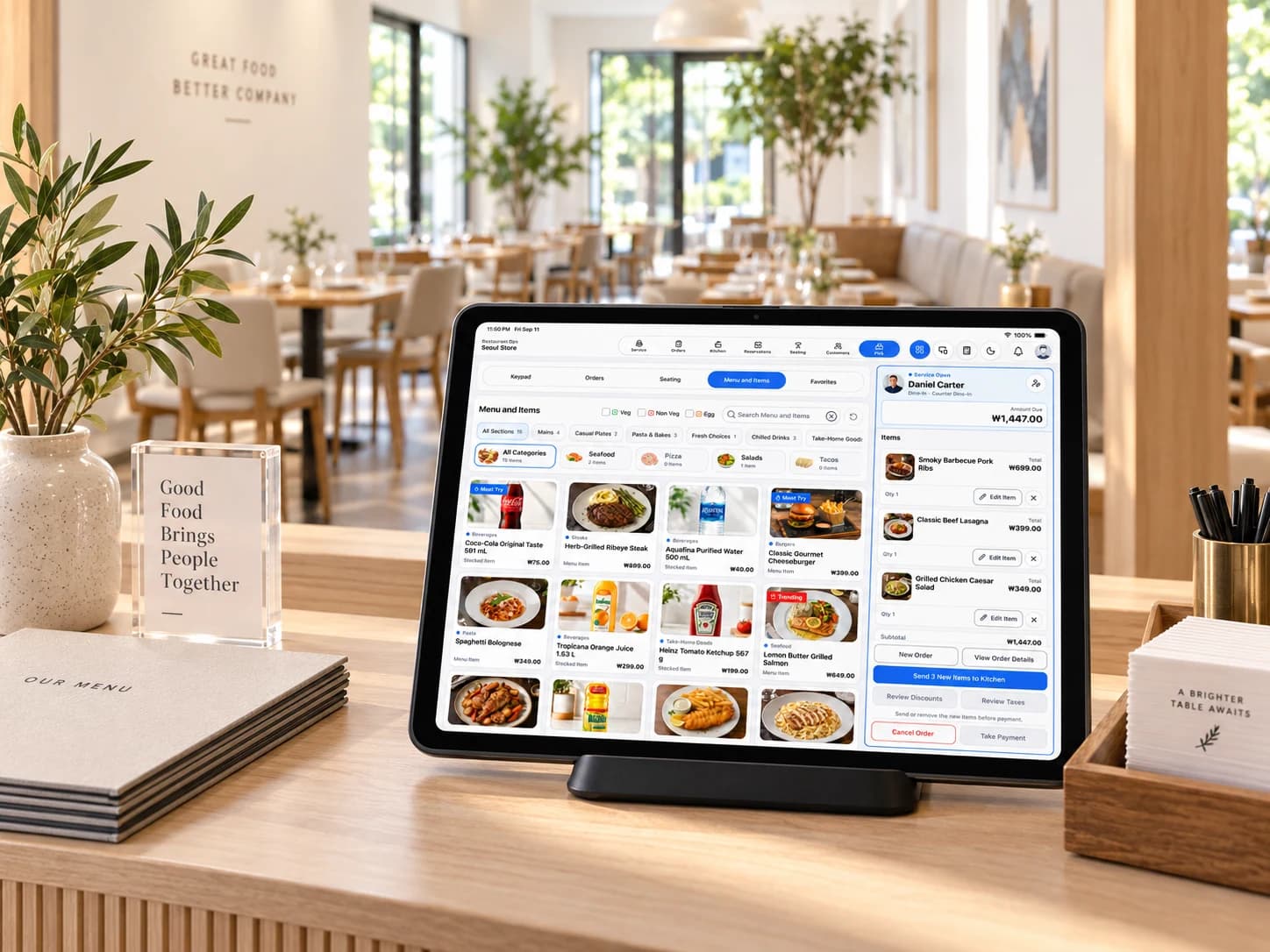
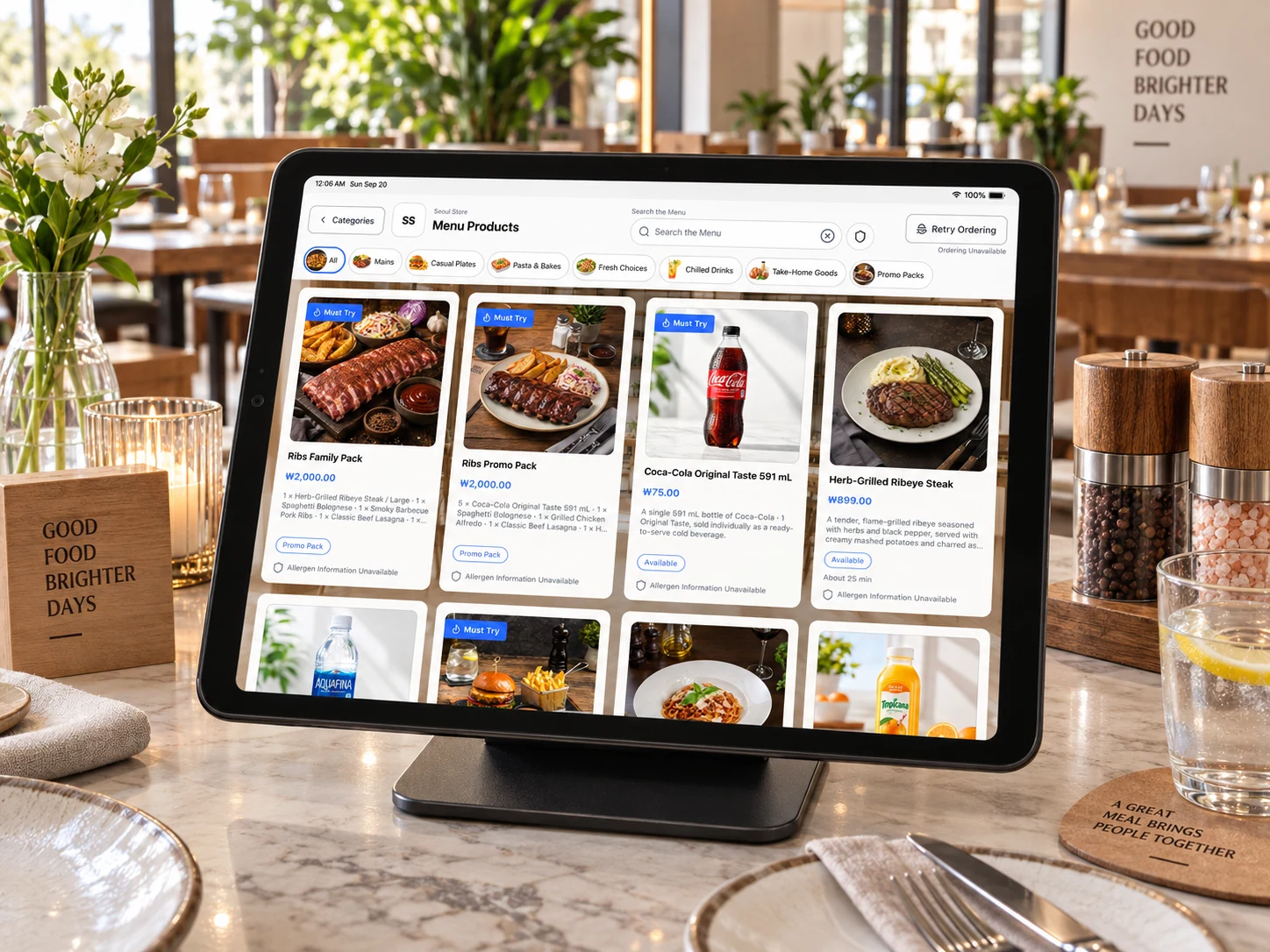
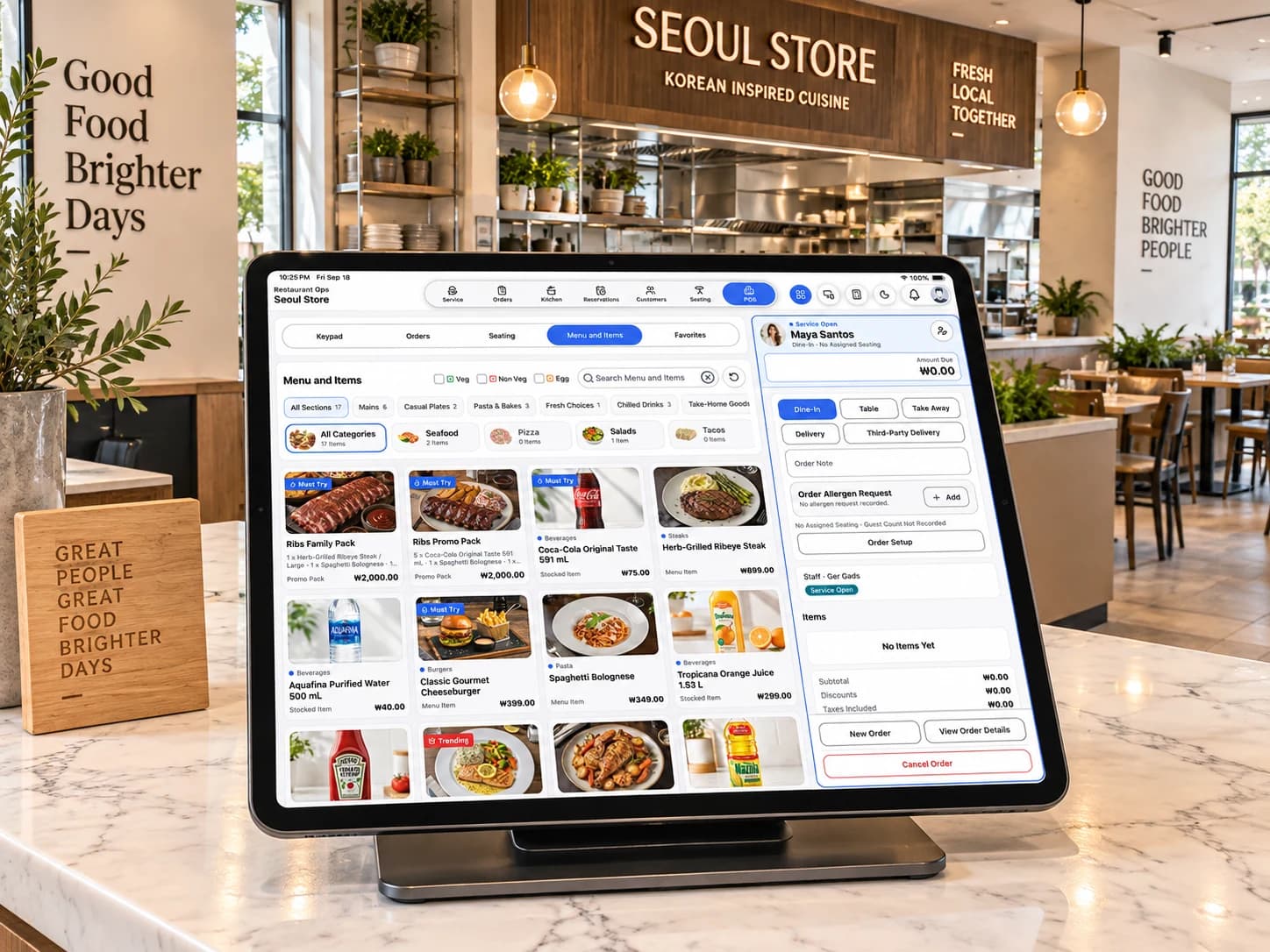
Restaurant POS on tablet with menu selection, Current Order, and Open Orders on phone in a bright restaurant.

Plan

Separate Subscription

One restaurant location; Standard POS is not required

Workday

Open to Daily Close

Orders, kitchen, tables, and food operations

Devices

Phone and Tablet

10 operational devices with up to 4 POS Stations; separate pools of 4 Customer Menus and 4 Customer Displays

Workspace

Restaurant Records

Orders, sales, and stock stay separate from Standard POS

A service from open to close

See how service moves from setup to close.

Follow the same Restaurant order from service setup and order taking through Kitchen, table service, checkout, and Daily Close.

  1. 1Prepare

    Get ready for service

    Set up the menu, recipes, ingredients, and availability.

  2. 2Take the order

    Take the order

    Choose the service mode, items, customer, and table details.

  3. 3Coordinate

    Send work to the kitchen

    Move sent items through New, Preparing, Ready, and Served.

  4. 4Serve

    Serve tables and bookings

    See live table status and Reservations when available.

  5. 5Record the outcome

    Record payment and exceptions

    Complete checkout, then record waste or delivery settlement.

  6. 6Close and review

    Close and review the day

    Review Daily Close, reports, and the audit history available to your role.

Open the complete Restaurant Ops how-to guide

Restaurant POS and Open Orders

Take new orders and return to open ones.

Restaurant POS keeps the menu, service details, and Current Order together. Open Orders helps the team find saved work and continue from the latest status.

Take the order

Restaurant POS

Build the order, check the details, and choose the next service step.

  • Take orders: Choose the service mode, add menu items, and include the customer, table, guest, staff, discounts, or notes the order needs.
  • Review Current Order: Check items, quantities, service details, taxes, discounts, and Amount Due before moving on.
  • Keep work together: The same saved order carries the details into Kitchen and checkout.

Keep service moving

Open Orders

Find a saved order and continue from its latest status.

  • See active work: Review active orders with service, table or delivery, Kitchen, payment, age, item count, and subtotal details when available.
  • Find the right order: Search or filter the list, check the current stage, and select the order you need.
  • Resume safely: Continue in Restaurant POS without rebuilding the order or changing it from a second screen.
Learn how to start or resume an order

Kitchen

Keep every Kitchen item moving.

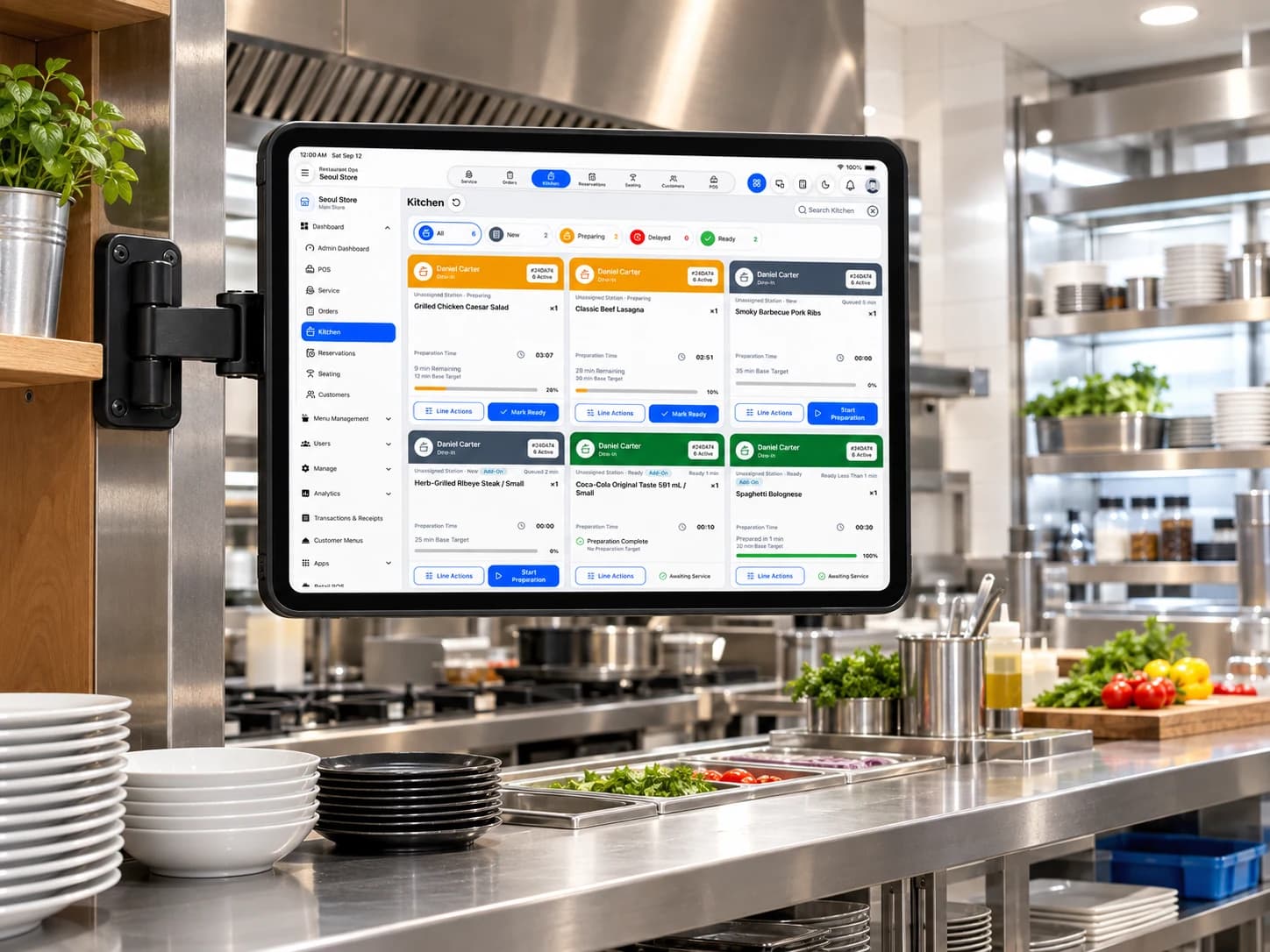
See sent items by station and status, then move each item from New to Preparing, Ready, and Served.

  • See the queue: View sent items by station and status, with order, item, quantity, note, and timing details.
  • Update each item: Move an item from New to Preparing, Ready, and Served as the work happens.
  • Handle changes: Use a required reason for Rush, Recall, or Cancel, and refresh if another device changed the item first.
Learn how to work the Kitchen queue
Restaurant kitchen display showing New, Preparing, and Ready ticket stages in a bright kitchen.

Tables and reservations

See which Tables are free, occupied, or booked.

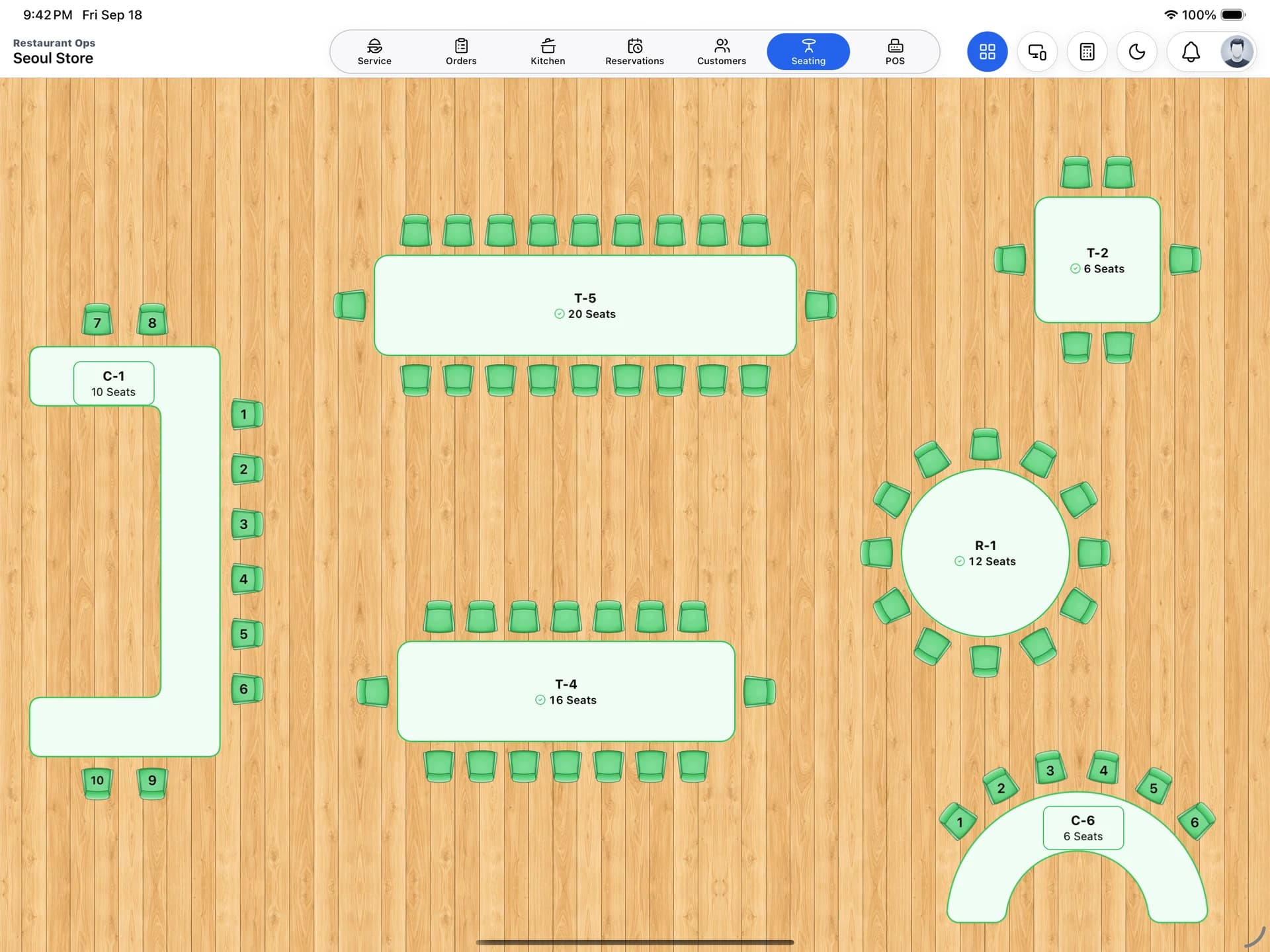
Open service on a free Table, return to an occupied Table, and use Reservations when it appears for your role.

  • See table status: Review dining areas, table capacity, free tables, and occupied tables with active orders.
  • Open or resume service: Start one dine-in order on a free table or return to the order already using an occupied table.
  • Seat bookings: When Reservations is available for your role, review a booking and seat the party into one live order.
Learn how to use Tables and Reservations
Restaurant tables and upcoming reservations shown on a host-stand tablet in a bright dining room.

Food operations

Set up what you sell and what each recipe uses.

Organize the menu, connect recipes to Ingredients, control item availability, and record Waste or Delivery Settlement when needed.

Menu

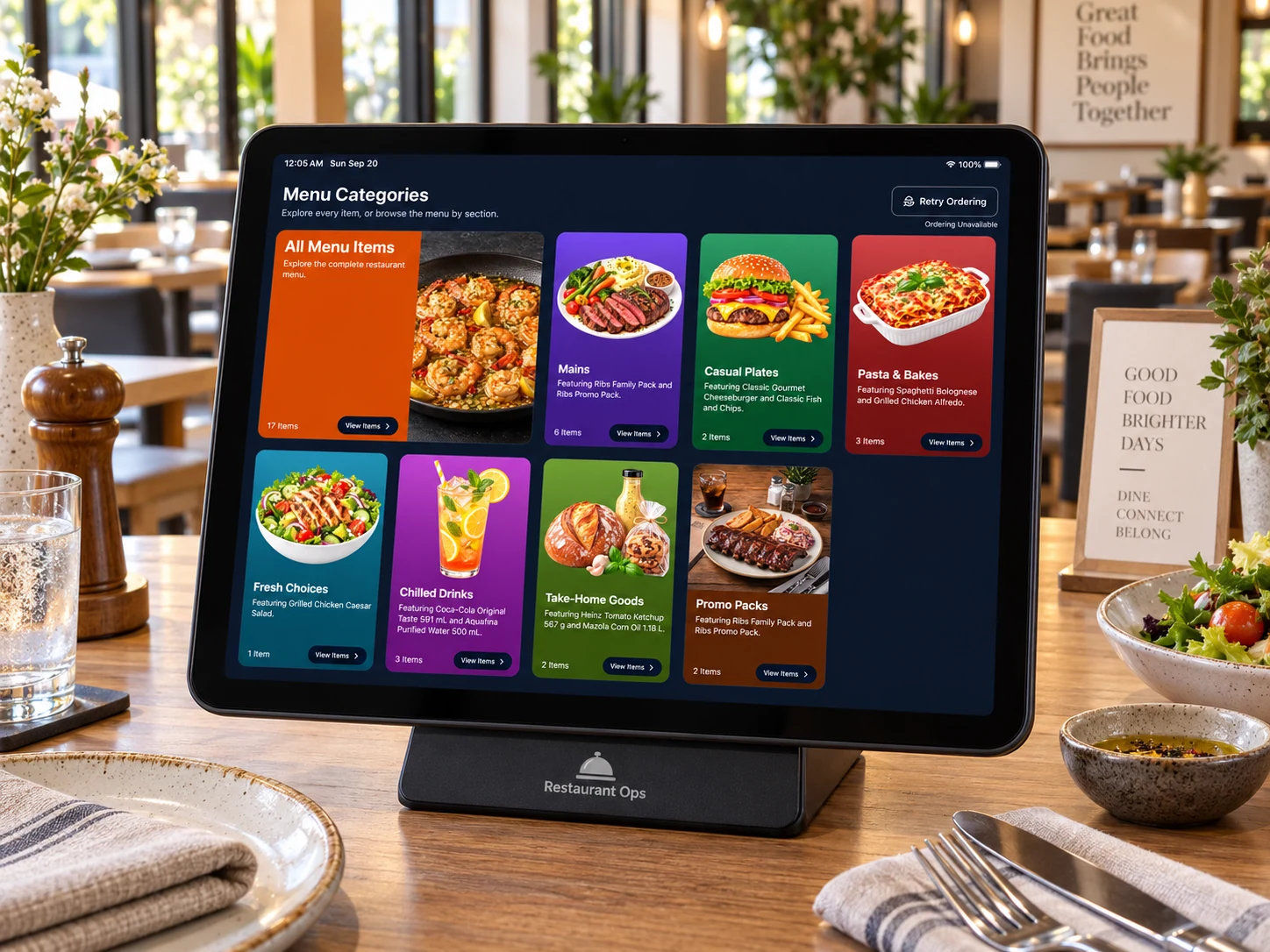
Organize the items staff can choose in Restaurant POS.

Staff can find the right item quickly during service.

Recipes

Show what a prepared item uses and what it costs to make.

The recipe stays connected to ingredient use after a completed sale.

Ingredients

Track the ingredients used to prepare recipe items.

The team can see what each recipe uses and where its cost comes from.

Availability

Mark an item Available, Sold Out, or Unavailable.

Restaurant POS can stop staff from adding an item that cannot be served.

Waste

Record the tracked stock that was actually lost.

The waste record and matching stock movement stay traceable.

Delivery settlement

Review and record settlement details for delivery orders.

Managers can review settlement without changing completed sale totals.

Learn how to manage the menu and food operations

Restaurant Admin Dashboard and Daily Close

Review the day, then lock Daily Close.

Use the Restaurant Admin Dashboard to see what needs attention. Review completed sales, recorded payments, actual cash, and exceptions before a manager with permission locks Daily Close.

  • See what needs attention: Use the Restaurant Admin Dashboard to review setup, order, Kitchen, availability, and close signals your role can see.
  • Run Daily Close: Review completed sales, recorded payments, actual cash, and exceptions before a manager with permission locks the day.
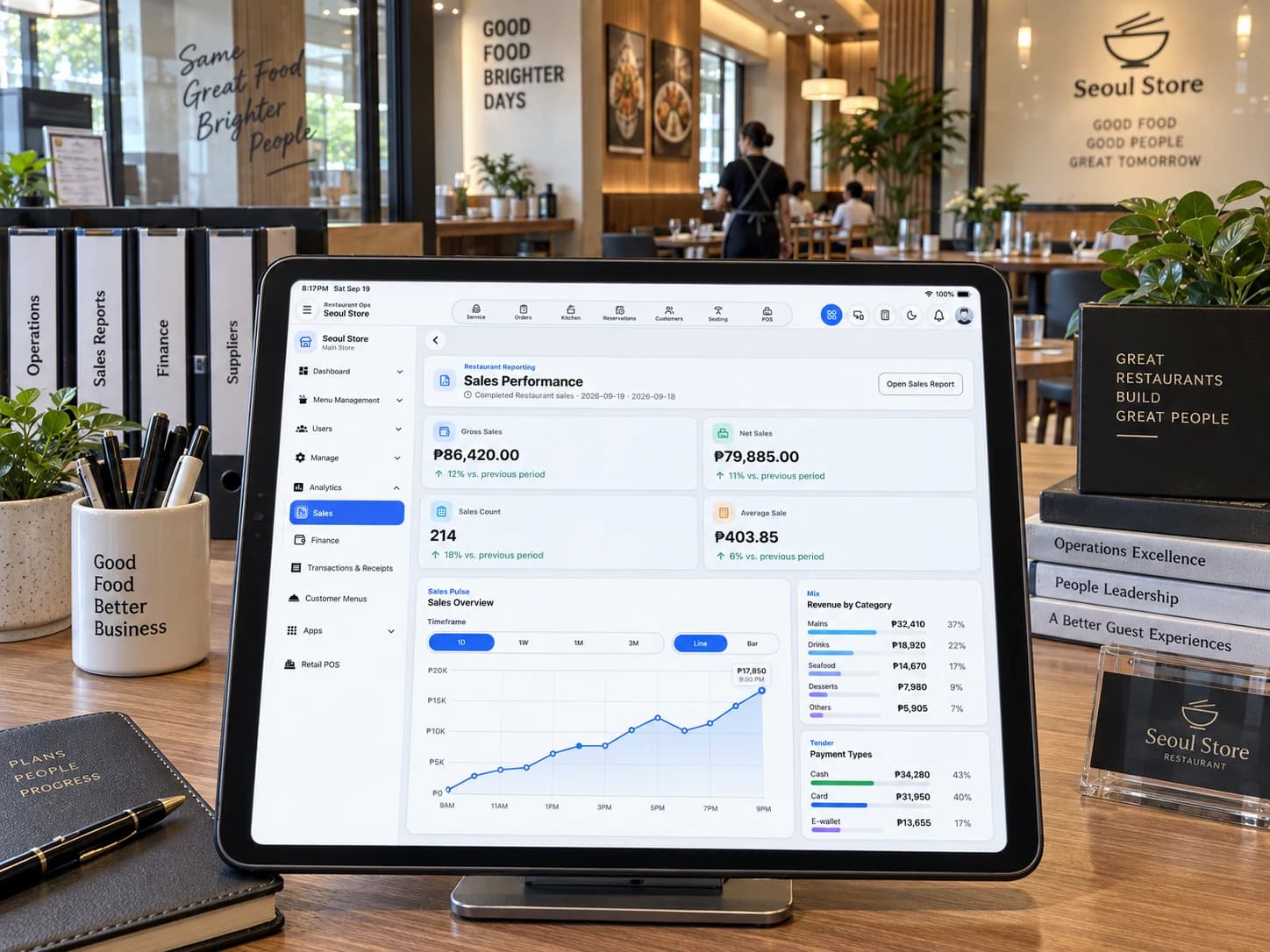
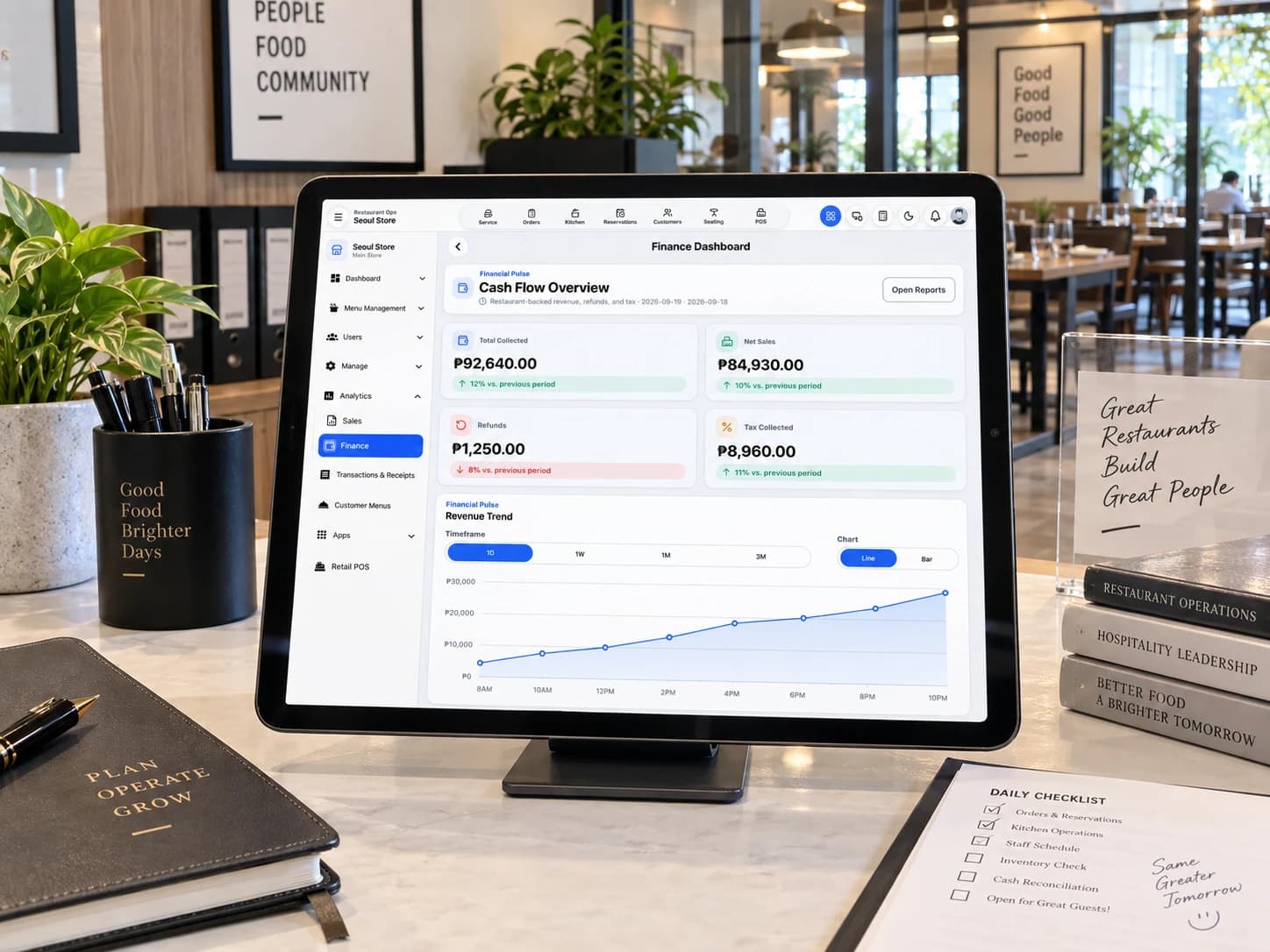
  • Review the results: Use Sales, Finance, Reports, and Operational Audit when those read-only tools are available for your role.
Learn how to close and review the day
Restaurant Admin Dashboard and Daily Close review shown on laptop and tablet in a manager workspace.

Phone and tablet

Use Restaurant Ops on phone or tablet.

Both devices use the same Restaurant records and permissions. The layout changes to fit the screen.

Phone

Focused phone workflow

Use focused screens for order, Kitchen, Table, menu, and manager tasks when a tablet is not available.

  • Open Restaurant Ops from Manage when the row is available.
  • Use Orders, Menu, and Current inside Restaurant POS.
  • Best for tableside checks, Kitchen actions, and short manager tasks.
  • An internet connection is required to save Restaurant changes.

Tablet

Wider tablet workspace

Keep more of Restaurant POS, Kitchen, Tables, setup, and review visible on a larger screen.

  • Use the Top App Bar for service and the side panel for management.
  • Keep Menu or Open Orders beside Current Order when space allows.
  • Best for continuous counter, Kitchen, dining-room, setup, and reporting work.
  • Portrait, landscape, and narrow layouts keep the same task and record.
Compare the Restaurant Ops phone and tablet workflows

Restaurant Ops plans

Review plan details when you are ready.

Restaurant Ops has its own Monthly and Yearly options. Standard POS is not included and is not required.

Monthly and Yearly options

The dedicated Plans page keeps current reference details and the comparison with Standard POS in one place.

View Restaurant Ops plans

FAQ

Common Restaurant Ops questions.

Who is Restaurant Ops designed for?

Restaurant Ops is for restaurants and food-service teams that manage orders, Kitchen work, Tables, available Reservations, recipes, waste, and Daily Close. A counter-service business that mainly needs checkout and stock may fit Standard POS instead.

Is Restaurant Ops included with Standard POS?

No. Restaurant Ops is a separately purchased service for one restaurant location, with 20 personnel including the owner. Standard POS is not required, and neither product includes the other. Buying both subscriptions covers the same location and does not add another branch.

What is Restaurant POS?

Restaurant POS is the frontline order workspace inside Restaurant Ops. Up to four POS Stations are service points at the same restaurant, not four branches, and are included within the ten operational-device allowance. Restaurant POS is not a third product or a separate subscription.

How do Restaurant POS, Open Orders, and Kitchen work together?

Restaurant POS starts or resumes the order and builds Current Order. Open Orders helps the team return to saved work. Sent items appear in Kitchen and move through their preparation steps without creating another sale or changing stock.

Can Restaurant Ops manage Tables and Reservations?

Tables shows dining areas and live table status and can open or resume dine-in orders. When Reservations appears for your role, the team can create and review table bookings and seat a confirmed booking into one dine-in order. Advanced floor-plan editing, waitlists, seating optimization, table merge or split, and split checks are not included.

How do Recipes, availability, and Waste affect stock?

After checkout completes, a Recipe Item uses its exact Ingredient quantities and a direct-stock item deducts the exact sold stock. Availability controls what can be ordered, and Waste creates a separate stock movement. Kitchen status alone never changes stock.

What does Daily Close do?

Daily Close reviews completed Restaurant sales, recorded payment details, actual cash, variance, and service exceptions for the business date. A manager with permission handles blockers and locks a close record that cannot be changed. Daily Close does not change completed sale totals and is not an accounting or banking tool.

Does Restaurant Ops process payments?

No. Restaurant Ops records payment details as part of Restaurant checkout. It does not move funds through a payment provider.

Can Restaurant Ops be used offline?

Restaurant screens may keep saved information visible while offline, but order, Kitchen, availability, Waste, settlement, Daily Close, and checkout changes need an internet connection. Changes are not queued while offline.

Are Standard POS and Restaurant Ops records shared?

No. Platform identity and billing infrastructure may be shared, but catalogs, inventory, orders, sales, payments, reports, drafts, and completed records remain product-owned.

Does Restaurant Ops support delivery platforms?

Restaurant Ops can record delivery and settlement details. It does not claim a direct delivery-platform integration.

Where do I subscribe?

Review Restaurant Ops on the dedicated Plans page, then continue through the governed app billing flow for the current localized offer, purchase confirmation, or access restore.

Restaurant service, from open to close

Learn the flow, then continue in BizAssist.

Use the Help Center for step-by-step guidance. Subscription, access, and restaurant work stay inside the app.